Topics · Your channel
Getting started
Courses
Membership plans
Token gating
Members & messages
AI Manager training
Insights
Creator plans
Your channel
Edit profile, cover & bio
Change your channel's basics in Studio > Page settings, and auto-post new posts with Connected accounts.
Page settings
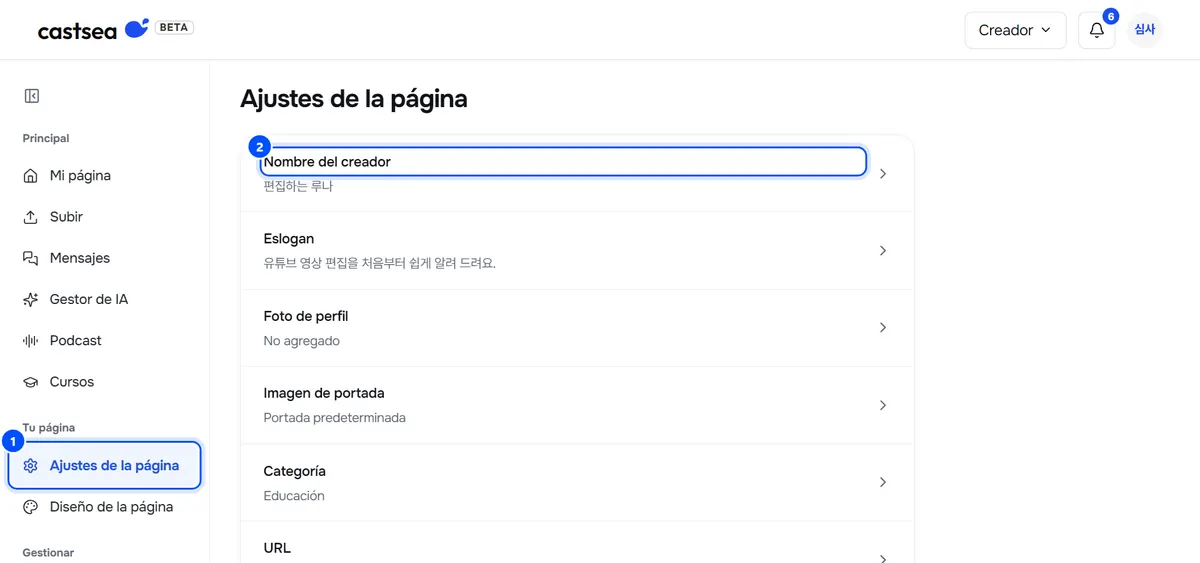
Open “Page settings” in the Studio menu and tap any item to edit it.
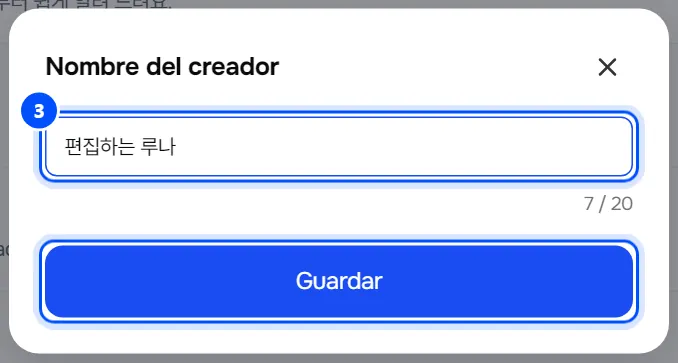
- Creator name, one-line bio, category
- Profile image (cropped to a square)
- Cover image (1920×600 recommended, adjustable position)
- URL (castsea.io/@address)
- Up to 8 social links (YouTube, X, Instagram, Telegram and more)
- Visibility: public / private (only people with the link)
Connected accounts — auto-post new posts
In Studio > Your page > Connected accounts, enter the address you want to link. If you added links when you built your channel, they're already connected the way you chose.
- Blog: new posts come over as written (photos included for Naver blogs; other RSS blogs get a summary and a link to the original).
- Public Telegram channel: new posts and photos come along.
- YouTube: new videos show up as castsea posts.
- X, Instagram and Facebook are coming soon.
Choose how they're posted
For each account, choose “Post automatically” (public right away) or “Review first”. With Review first, new posts are saved as drafts for you to check and publish in Studio > Content.
Tip
Only posts made after you connect are brought in. Members-only posts are never auto-posted.