Topics · Podcasts
Getting started
Courses
Membership plans
Token gating
Members & messages
AI Manager training
Insights
Creator plans
Podcasts
Start a live podcast
Create an audio room, check your mic in the green room, and go live.
Create a podcast room
In Studio > Podcasts, tap “Create podcast room”. Set the title, an optional thumbnail (up to 4MB), who can request to speak (invited only, members, everyone), visibility (members only or public) and whether to record.
Schedule a start time to show it on your channel; members (members-only rooms) or followers (public rooms) get a reminder 10 minutes before.
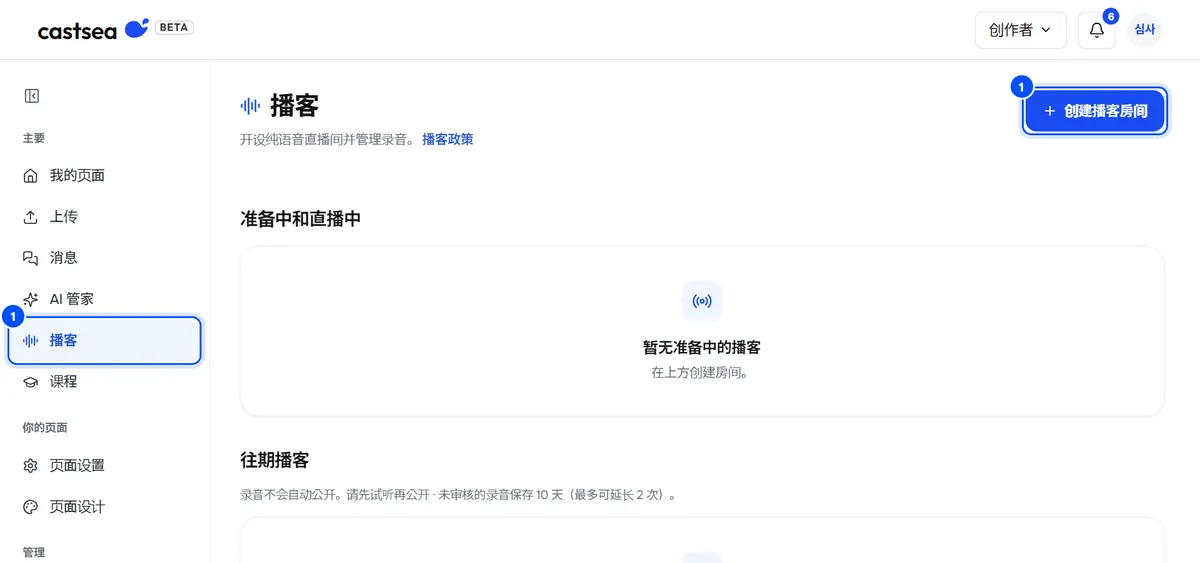
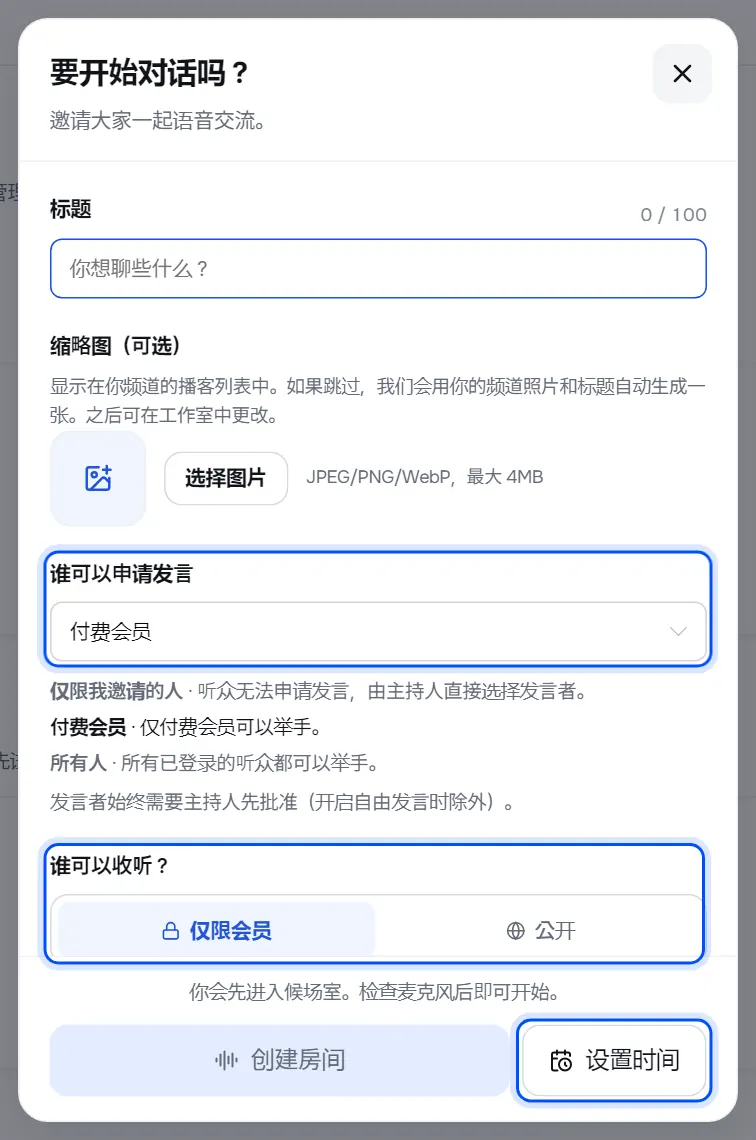
Go live from the green room
Creating the room opens the green room. Check your mic and tap “Start podcast”. Until then, listeners see “Starting soon”.
Bring in guests
When listeners raise their hands, accept or decline in the guest panel. You can have up to 2 co-hosts and 10 speakers. The person menu also lets you mute, move back to listener or remove someone. Tap “End podcast” to finish.
Only speakers are recorded, and everyone sees “Recording” while it's on.