Topics · Posting
Getting started
Courses
Membership plans
Token gating
Members & messages
AI Manager training
Insights
Creator plans
Posting
Publish a post
Create text, image, video, audio or poll posts from Upload and publish them.
In this article
- What you can create
- What the editor can do
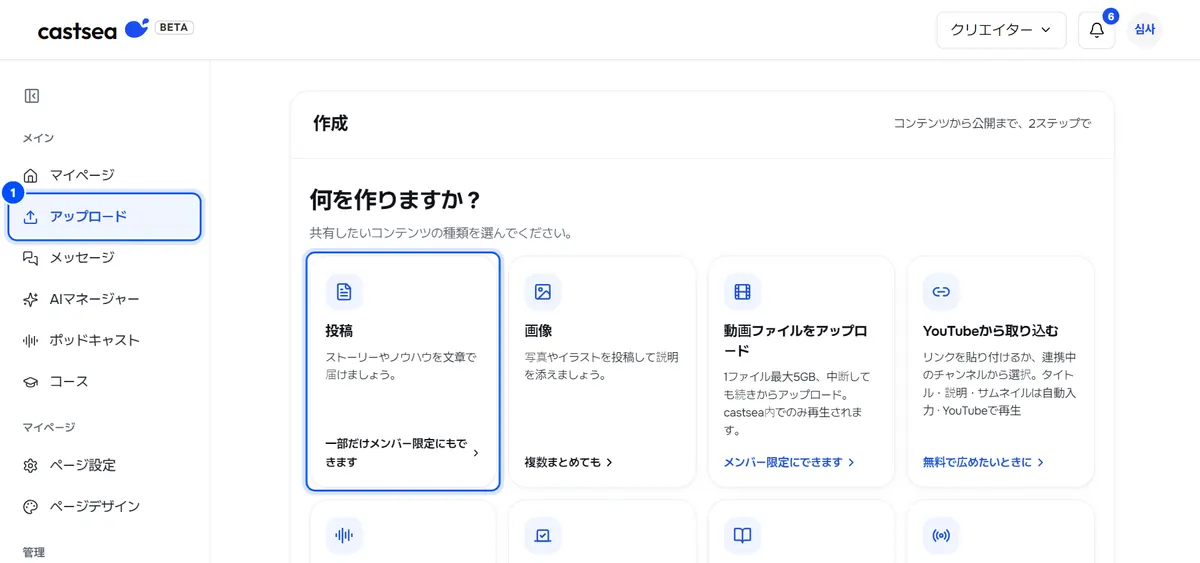
Choose what to make
Tap Upload in Studio to see “What would you like to make?” — text, image, video upload, import from YouTube, audio, poll, course or podcast live.
Write the post
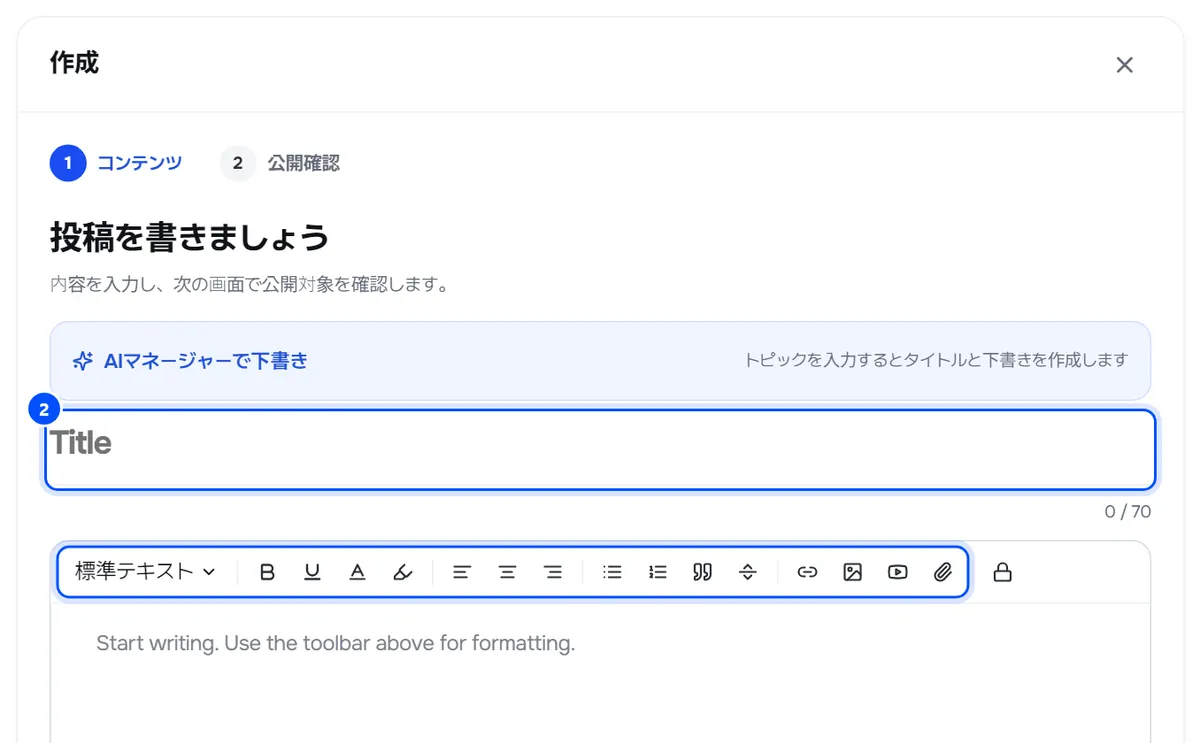
Titles can be up to 70 characters. The editor supports headings, bold and underline, text and highlight colors, alignment, lists, quotes, dividers, links, images, YouTube embeds and file attachments — or use the “+” menu on an empty line.
Tip
Drafts save automatically. Reopen them from “Continue writing” on the Upload screen.
Check visibility and publish
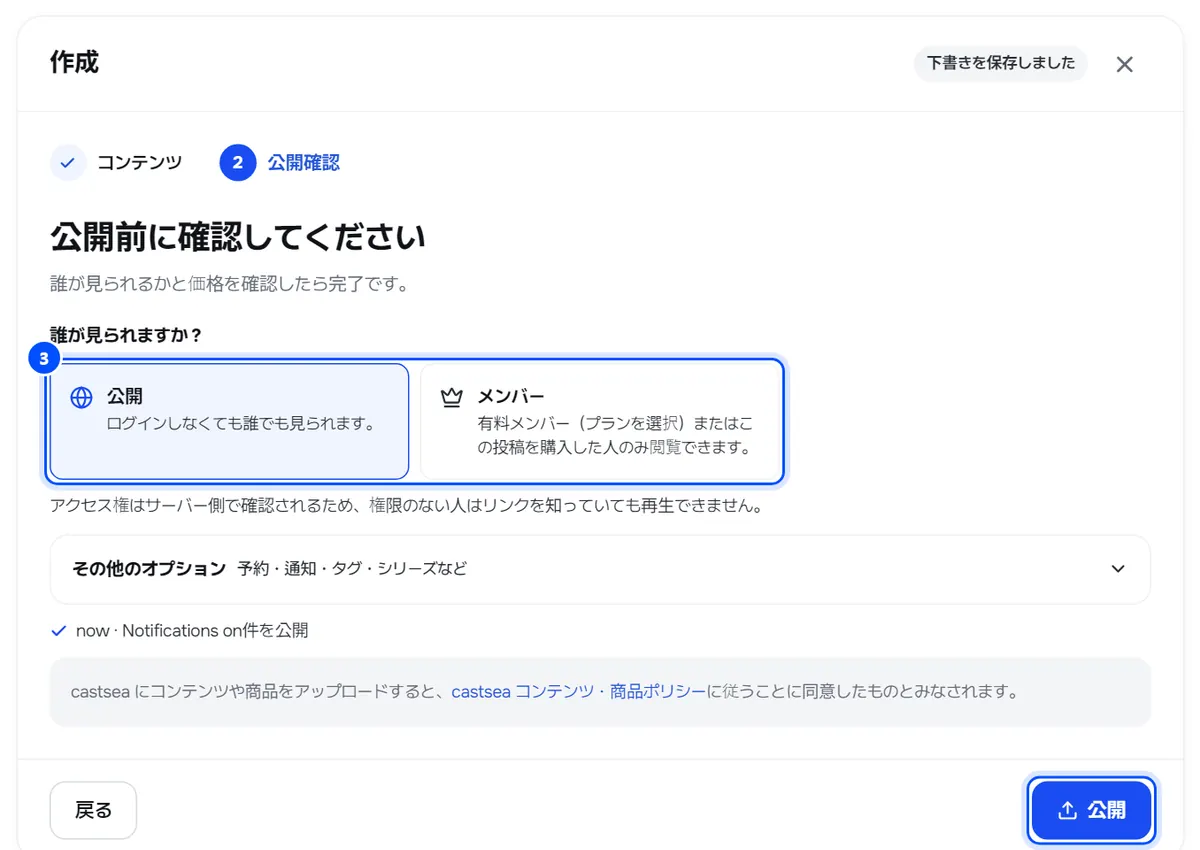
Under “Who can see this?”, choose Public or Membership (all members or specific plans). Membership visibility needs at least one published plan. Then tap Publish.